Faculty Moodle and Course Design Support Hub
Your first point of support for accessing Moodle, preparing your course shell, applying UTT’s OSCQR course-quality standards, and finding the right guides, videos and training resources.
Your recommended support pathway
Follow these four steps to find guidance quickly and provide the information needed if further support is required.
Identify your task
Access, course setup, activities, assessment, grading, OSCQR or another Moodle need.
Use the resource
Review the relevant course lesson, knowledge-base guide, webinar or supplemental video.
Apply and verify
Complete the steps in your course and check the result before students access it.
Request support
If assistance is still needed, submit a ticket with the course and issue details.
Which Moodle course should I use?
UTT uses different course types for development, teaching and practice. Confirm the course type before adding or updating content.
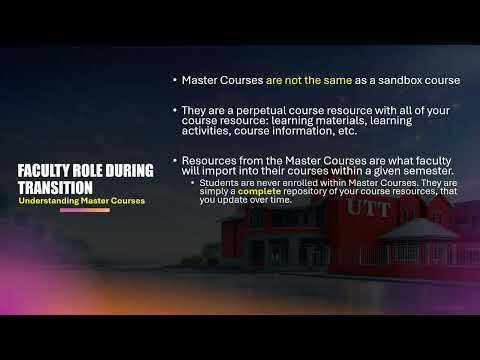
Master Course
Your Master Course is the approved development space for preparing reusable course content.
- Use it to develop, organize and review the standard course content.
- Apply the approved course-shell template and OSCQR guidance here.
- Do not treat the Master Course as the live class unless specifically directed.
- Content can be copied or imported from the Master Course into the appropriate Semester Course.
Semester / SIS Course
This is the live teaching shell created from official semester and registration information received from the Student Information System (SIS).
- Use it to teach the assigned class for the stated semester and section.
- Official lecturer and student enrolments are connected to institutional data.
- Confirm the course code, semester, delivery mode, section and scheduled day before adding content.
- Copy the approved content from the Master Course, then update semester-specific dates and instructions.
Sandbox Course
A Sandbox is a private practice space for learning Moodle, testing settings and experimenting with activities.
- Use it to practise without affecting a live class.
- It is not connected to an official student cohort.
- Do not direct students to a Sandbox unless it was intentionally created for that purpose.
- Move only finalized and reviewed content into the appropriate Master or Semester Course.
Professional Development Course
ProDev Moodle is used for staff development, orientation, workshops and other non-academic learning activities.
- Examples include the Faculty Transitioning to Moodle Workplace and Faculty Orientation courses.
- ProDev and Academic Moodle are separate environments.
- Access to one environment does not automatically provide access to the other.
- Use the login details or access instructions provided for the specific activity.
Before you begin editing
Check the full course name and code carefully. Similar courses may represent different semesters, sections, delivery modes or purposes. Editing the wrong shell may result in students not seeing the changes. Where the correct Semester/SIS Course is missing, do not create a replacement shell—contact Support TLIS with the course code, semester and section details.
Essential faculty resources
Begin with the resource that best matches your immediate need.
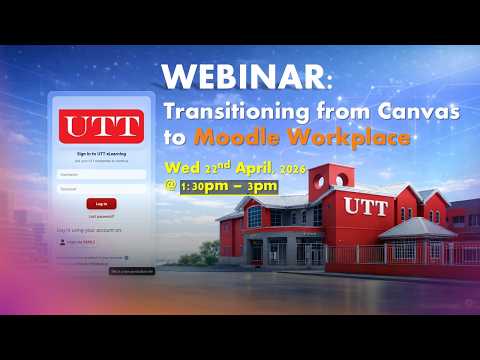
Faculty Transitioning to Moodle Workplace
The primary self-directed course for faculty transitioning from Canvas. It brings together Moodle guidance, faculty responsibilities, course preparation and OSCQR-related content.
Faculty Orientation Course
A structured orientation resource for faculty who need broader institutional and teaching-support guidance alongside their Moodle preparation.
OSCQR Rubric
Use the approved rubric to review course organization, instructions, accessibility, engagement, assessment and learner support.
Choose the format that works for you
The hub supports different ways of learning, including guided courses, written instructions, videos and hands-on application.
Visual
Use demonstrations, screenshots and course examples to see how Moodle tasks are completed.
Auditory
Listen to webinar explanations and recorded question-and-answer sessions.
Reading and Writing
Follow written knowledge-base articles and course checklists at your own pace.
Hands-on Practice
Apply the guidance directly in your Master Course or Sandbox Course as you learn.
Moodle access and written guides
Use the knowledge base for concise, step-by-step answers to common questions.
Access Academic Moodle
Academic Moodle is used for UTT undergraduate and postgraduate Semester/SIS Courses, Master Courses and faculty Sandbox Courses. Access it through the Moodle Academic icon in MyCampus.
Moodle Knowledge Base
Browse current Moodle articles covering access, navigation, course management and frequently requested tasks.
Course preparation and proper use
Use these resources together to ensure that your course shell is organized, complete and ready for students.
Master Course preparation
Prepare and review your Master Course before content is reused in a live Semester/SIS Course. After importing, update semester-specific dates, assessment availability, lecturer information and instructions, then confirm that the correct content is visible to students.
Apply OSCQR while building
OSCQR should be used alongside the approved course-shell structure—not as an afterthought—to guide navigation, accessibility, learner engagement and assessment design.
Video and webinar library
Open a topic below to view the related recordings. The videos are grouped to make the library easier to scan.
Getting Started 3 videos

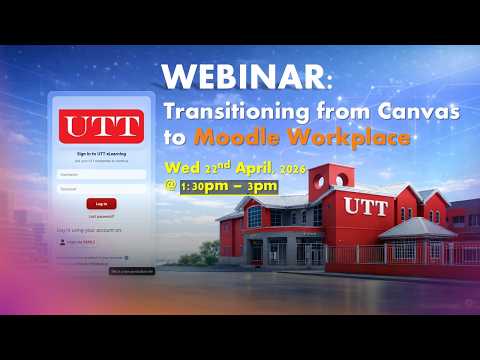
Transition Overview 6 videos
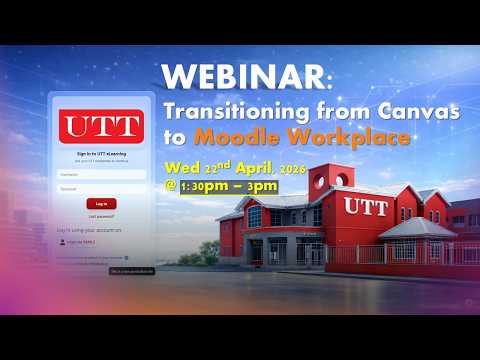 ▶
▶Transition to Moodle Workplace: What to Expect
Watch on YouTube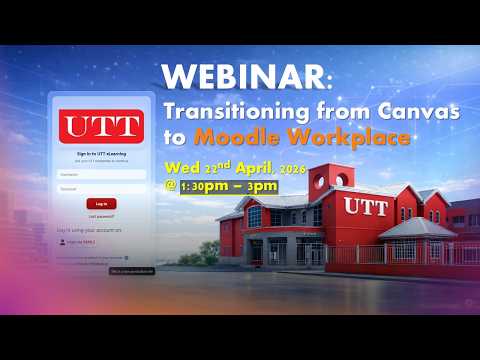 ▶
▶Q&A: What’s the Same vs. What’s New
Watch on YouTube ▶
▶Transition to Moodle Workplace: What’s the Same and What’s New
Watch on YouTube ▶
▶Transition to Moodle Workplace: Familiar User Experience
Watch on YouTube ▶
▶Transition to Moodle Workplace: What’s Next
Watch on YouTube ▶
▶Q&A: Familiar User Experience
Watch on YouTubeFaculty Role & Support 3 videos
Building Your Course 4 videos
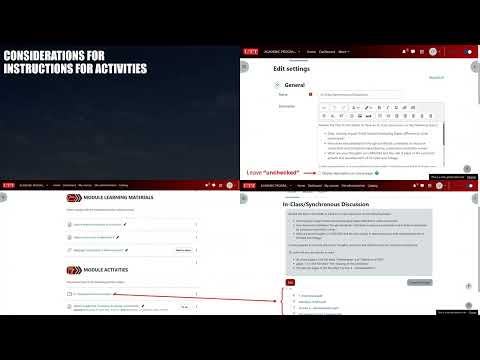
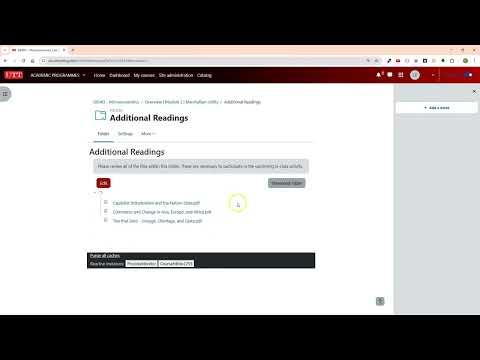
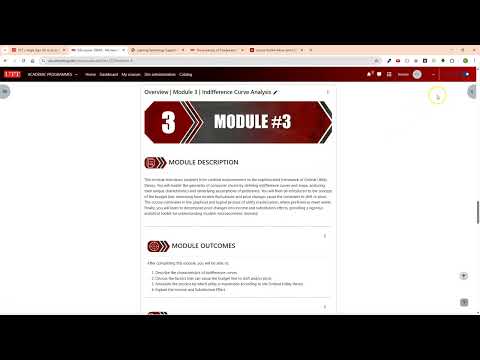
Course Management 3 videos
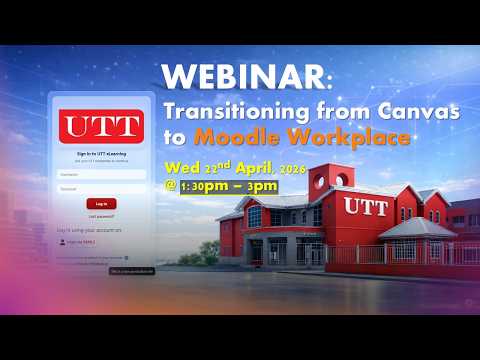
Master Course Checklist 5 videos
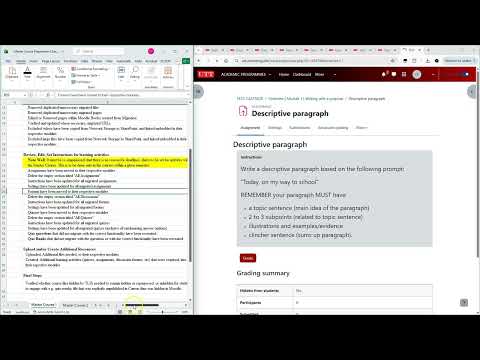 ▶
▶Operationalising the Master Course Checklist – Part 4
Watch on YouTube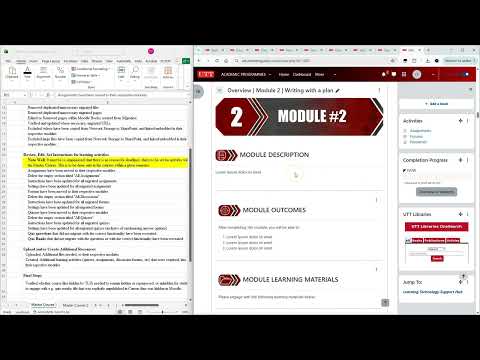 ▶
▶Operationalising the Master Course Checklist – Part 3
Watch on YouTube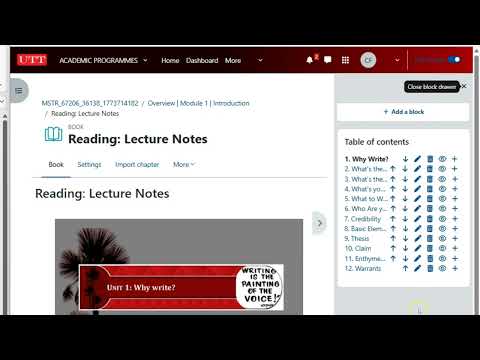 ▶
▶Operationalising the Master Course Checklist – Part 2
Watch on YouTube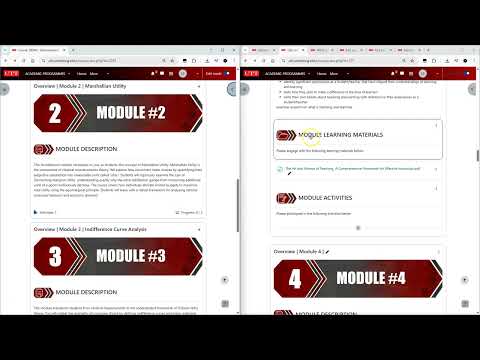 ▶
▶Operationalising the Master Course Checklist – Part 1
Watch on YouTube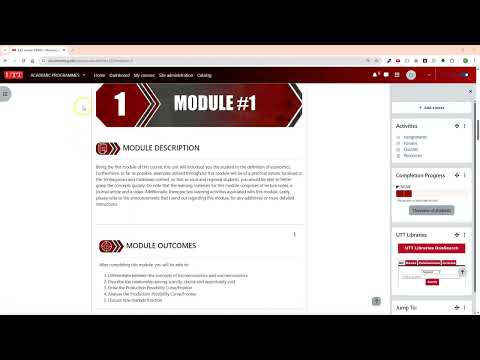 ▶
▶Understanding the Master Course Preparation Checklist
Watch on YouTubeOSCQR & Course Quality 3 videos
Additional Tools 1 video
Workshops and further development
Use self-directed resources at any time and check the workshop schedule for live faculty-development opportunities.
Workshop Schedule
View upcoming TLIS workshops and scheduled learning opportunities.
Faculty Orientation
Use the orientation course as an additional structured resource for faculty development.
Recorded Q&A Sessions
Use the webinar library above for answers about the Moodle transition, familiar features, OSCQR and storage limitations.
Still need assistance?
Support TLIS remains available when the provided resources do not resolve your issue. To help the team investigate efficiently, include the following information in your request:
- Your full name
- Course code and full course name
- Semester, year and delivery mode
- Academic or ProDev Moodle, and the course type
- A clear description of the task or issue
- A screenshot or exact error message, where possible
Resources will be reviewed and updated as UTT’s Moodle implementation and faculty-support practices continue to develop.